The short version
- 01Choose the frequency policy separately from the within-page trigger.
- 02Session storage is tab-scoped; a multi-day cap needs persistent state and an expiry check.
- 03Count the most recent display or dismissal when starting a cooldown.
- 04Stop asking after successful submission, while documenting browser-storage limits.
- 05Compare submissions per visitor as well as submissions per display.
Popup frequency capping limits how often the same browser sees a campaign. Start with one display per tab session for a short-lived offer, or a multi-day cooldown for an evergreen signup. Stop asking after a successful submission. These are starting policies to test, not universal conversion benchmarks.
A delay answers “when during this visit?” A frequency cap answers “how often across visits?” You need both. A well-timed newsletter popup can still become the most distracting part of a website if it opens on every article, every reload and every return visit.
This guide separates those decisions, explains what a browser can actually remember, and gives you a repeatable test plan. The PopupForge settings below were checked against the builder and embed code on October 21, 2026. The recommendations are editorial examples; they are not results from a customer experiment.
What popup frequency capping controls
A frequency policy decides whether a campaign is eligible to display. Its trigger then decides when to open it. A visitor may be eligible but leave before reaching a scroll threshold, so eligibility is not an impression.
There are three useful pieces of history: when the campaign was shown, when it was dismissed and whether its form was submitted successfully. Keeping those separate avoids mistakes such as treating a close as a rejection forever or treating a failed form submission as a conversion.
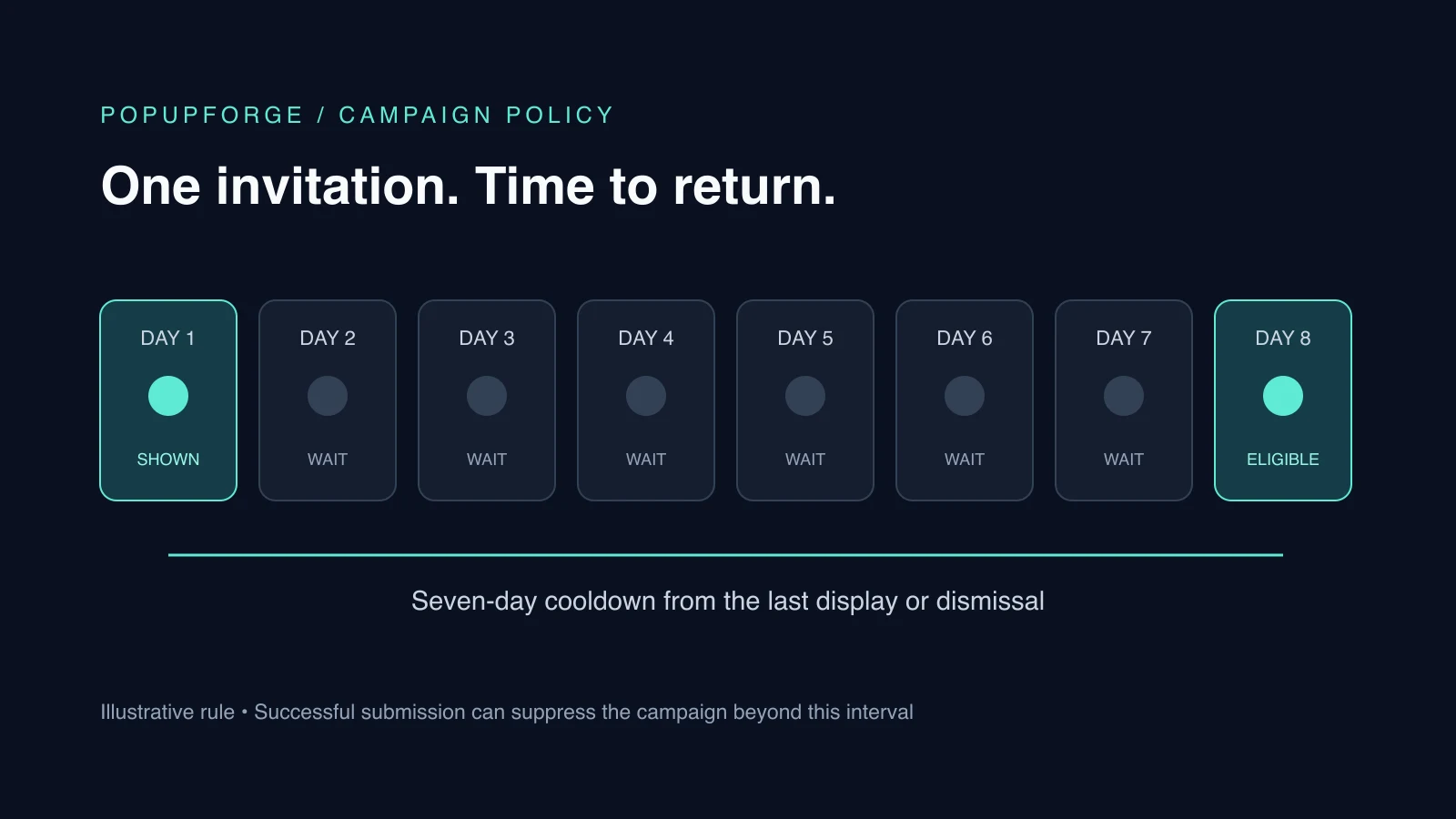
For the within-page decision, use our website popup timing guide. For the repeated-display decision, write a policy that another person can test: “Show this campaign once, wait seven days after its last display or dismissal, and suppress it after submission in this browser.”
Choose a cap by the visitor's task
The following settings are proposed starting points, not measured best settings. Match the interruption to the offer and the visitor's task before experimenting with the interval.
| Campaign | Starting policy | What to check |
|---|---|---|
| Evergreen newsletter signup | Seven-day cooldown; stop after submission | Returning readers can read several articles without another interruption |
| Downloadable guide | Once per tab session; stop after submission | The offer relates to the page and delivers the promised resource |
| Short promotion | Once per tab session, limited to relevant pages | The offer remains valid when someone returns |
| SaaS pricing question | Once per tab session with exit intent | It does not interrupt someone choosing a plan |
| Existing subscriber announcement | Separate campaign and suitable audience rules | A newsletter signup is not reused as an announcement |
| Checkout | Prefer an inline message or no marketing popup | Nothing blocks payment or hides validation errors |
A seven-day interval is simply a practical first hypothesis. A daily reader and someone researching a purchase once a month have different visit patterns. If most people never return, changing the cooldown may barely affect reach; work on the offer and targeting first.
“Every pageview” is useful for controlled QA. It is a poor default for a site with several pages per visit because a dismissal can be followed by the same request immediately after navigation.
Session caps and day-based cooldowns are different
A session cap usually remembers a display for the current browsing context. A day-based cooldown stores a timestamp that can survive a later visit. The difference matters when someone reloads, opens another tab or closes the browser.
MDN's sessionStorage reference explains that session storage is partitioned by origin and browser tab. It survives reloads within that page session. A separate tab can have separate state; a tab opened by another may initially receive a copy. “Once per session” therefore does not necessarily mean once across every open tab.
MDN's localStorage reference describes storage that persists across browser sessions for an origin. A cooldown can use it to retain a last-seen timestamp. The browser does not automatically expire that timestamp after seven days: the application must compare the stored time with the current time.
| Policy | Stored signal | Reload in the same tab | Later visit in the same browser |
|---|---|---|---|
| Every pageview | No frequency restriction | Can display again | Can display again |
| Session cap | A session display marker | Suppressed after display | Depends on whether the page session still exists |
| Day-based cooldown | Last display or dismissal timestamp | Suppressed within interval | Suppressed until interval expires |
| After-submit suppression | Successful submission marker | Suppressed | Suppressed while that marker remains available |
None of these policies identifies a person across devices. Clearing site data, using another browser or visiting another origin can create a fresh state. Do not describe a local browser marker as a global customer identity.
Should the cooldown start after display or dismissal?
Starting only after dismissal misses visitors who see a popup and navigate away without using its close button. They received the interruption, even though no close event was recorded.
A more explicit policy uses the most recent display or dismissal time. For example, if the popup appears at 10:00 and closes at 10:02, a seven-day cooldown runs from 10:02. If the visitor navigates away instead, the display at 10:00 still starts the interval.
This is how the current PopupForge embed handles the “Every few days” setting. It takes the later of the stored display and dismissal timestamps. A successful submission is checked separately and can suppress the campaign beyond that interval.
Be careful with language in your campaign notes. “Seven days after closing” and “seven days between views” are different promises. Choose the second if a view should count even when the visitor leaves without closing.
Stop asking after a successful submission
After-submit suppression should follow the success response, not the first press of the submit button. A visitor who mistypes an email address or encounters a network error has not completed the form.
In PopupForge, the embed records the submission marker when it receives the submitted message from the form. The builder's Stop showing after they submit option is enabled by default. Leave it enabled for a newsletter or a one-time content download unless the campaign has a specific reason to collect another response.
That marker belongs to the campaign and this browser's stored state. It is not a lookup of every subscriber in your email platform. An existing subscriber arriving from a new device may still see the campaign. If your use case requires authenticated audience suppression, verify that integration separately rather than assuming a local cap provides it.
For questions about the fields and the offer itself, see lead capture form examples and email popup examples.
Configure frequency capping in PopupForge
Open a popup in the builder and use its Triggers settings. Frequency is separate from the trigger, so choosing a scroll trigger does not automatically choose a cooldown.
- Select the trigger appropriate to the page: immediate, delay, scroll or exit intent.
- Under frequency, choose Once a session or Every few days for a production starting point.
- For Every few days, set Wait between views. The builder exposes a range of 1 to 90 days, with seven days as the fallback when no positive value is configured.
- Keep Stop showing after they submit enabled for a signup campaign.
- Set the URL targeting and exclusions, then save and test the actual installed embed.
These settings apply per popup configuration. Two different campaigns can each be eligible. A per-campaign cooldown does not guarantee a site-wide limit of one interruption, so review all campaigns that target the same page.
If you are creating the offer from scratch, the AI popup generator can draft a starting design from your URL. Review the copy, fields, frequency and targeting before publishing; generating a design does not validate the visitor experience.
Test repeat visits before launching
Use a staging page or a QA campaign, and do not submit fabricated leads into your production list. Record the campaign ID and the settings you are testing so a duplicate configuration does not invalidate the result.
First visit and same-tab navigation
Clear only the relevant test site's campaign state. Open a matching page, satisfy its trigger, and confirm one display. Close it and reload in the same tab. Under a session cap or an unexpired cooldown, it should stay suppressed. Navigate to a second matching page and repeat.
Also open an excluded page. It should remain excluded even with no stored history. Frequency rules are not a substitute for URL targeting.
New tabs and returning visits
For a session cap, test both a separately opened tab and one opened from a link. Document the behavior you observe rather than assuming all tabs share the marker. For a cooldown, use the same origin and browser profile to verify that the saved timestamp persists.
To test expiry without waiting days, use an isolated QA environment with a deliberately old test timestamp or a controlled clock. Avoid changing your computer clock or editing real visitors' state. Confirm that one new display starts a new interval.
Submission and failure states
Use a test destination to verify successful submission suppresses the campaign. Separately test invalid input and a failed request: the form must remain usable, and those failures should not masquerade as successful leads. Check the confirmation screen before treating an analytics submission event as proof of delivery.
Blocked or cleared storage
Storage operations can fail under browser policies. PopupForge catches storage errors and treats unreadable history as fresh, allowing a display rather than breaking the page. That means the cap is best effort when storage is unavailable.
Test that the page still works when storage is blocked and record the limitation. Do not promise “never show twice” under those conditions. Private browsing and cleared site data also need separate checks.
Measure reach and leads together
A tighter cap reduces impressions. That can raise submissions per popup view while lowering total useful leads. Track the full path instead of celebrating one rate.
Keep the time period and visitor population consistent. Compare campaign displays, successful submissions and eligible page traffic, with the same definition of a visitor in each variant. If you have reliable lead-quality data, inspect that too. Popup views alone cannot tell you whether the captured emails are useful.
The example below is hypothetical and illustrates the arithmetic, not a PopupForge benchmark.
| Weekly outcome | Every pageview | Seven-day cooldown |
|---|---|---|
| Eligible visitors | 1,000 | 1,000 |
| Popup displays | 1,800 | 700 |
| Successful submissions | 36 | 28 |
| Submissions per display | 2% | 4% |
| Submissions per 100 eligible visitors | 3.6 | 2.8 |
The cooldown has the higher per-display rate, but fewer submissions per eligible visitor. That does not automatically make it worse: repeat interruptions, lead quality and the main page's goal also matter. It does mean “conversion rate doubled” would omit a material trade-off.
Use the popup conversion rate calculator for the display-to-submission ratio. Keep visitor-level reach in your analytics separately. Change the cap while holding offer, audience and trigger stable; otherwise you cannot isolate the reason for a difference. With little traffic, report the counts and uncertainty rather than declaring a winner after a few leads.
Frequency does not replace accessible, unobtrusive design
A popup shown only once can still block the content or trap keyboard users. Google's interstitial guidance recommends keeping content accessible and using small banners instead of full-page promotional interruptions. Waiting a few seconds or adding a cooldown does not certify a popup as SEO-safe.
For a modal, test focus entry, keyboard navigation, Escape and focus restoration. The WAI-ARIA modal dialog pattern explains those interactions. A nonmodal banner has a different interaction model; do not assign modal semantics simply because an element appears over the page.
Use the popup design checklist alongside frequency QA. Close controls, readable content and usable form errors matter on the first impression as much as the fifth.
A launch checklist you can copy
- State the policy in one sentence, including the interval and what starts it.
- Verify whether session state is tab-scoped or shared by your implementation.
- Test reloads, navigation, new tabs and returning visits.
- Start the cooldown from a display even if no close event occurs.
- Record successful submissions separately from attempts and errors.
- Check overlapping campaigns on the same page.
- Test expired state, unavailable storage and a fresh browser profile.
- Compare useful leads per visitor alongside submissions per display.
- Keep the content readable and the popup keyboard accessible.
Start with one relevant campaign and a policy you can explain. Once its repeat-visit behavior is predictable, you can test the interval. More frequent impressions are not useful if they repeatedly ask the same person for something they have already done.
Reference
Terms in this guide
FAQ
Frequently asked questions
What is popup frequency capping?
It limits how often a campaign can display to the same browser, for example once per tab session or once in a seven-day interval. It is separate from the trigger that opens a popup during an eligible visit.
How often should a newsletter popup appear?
A seven-day cooldown with suppression after successful submission is a starting hypothesis for an evergreen newsletter. Test it against your own visit patterns and lead quality; there is no universal best interval.
Does once per session mean once across every browser tab?
Not necessarily. PopupForge uses sessionStorage for its session display marker. It is scoped to an origin and browser tab, survives reloads and can behave differently when another tab is opened.
Can a frequency cap hide a popup across devices?
A browser-local cap cannot identify a person across devices or browsers. Clearing site data or using a new browser can create fresh state. Cross-device suppression requires a separate, verified identity and audience mechanism.
How does PopupForge handle cooldowns?
The Every few days setting offers 1 to 90 days. The embed compares the current time with the later of the last display and dismissal timestamps. Stop showing after they submit is a separate option enabled by default.
Does a frequency cap make a popup SEO-safe?
No. A cap does not ensure the content remains accessible or the dialog is unobtrusive. Review Google’s interstitial guidance and test the layout and keyboard interaction separately.
Put the guide into practice
See three popup directions for your website.
Paste your URL and get three brand-matched popup concepts to review. It is free to try and does not require an account.
Generate 3 popup ideas free